> ## Documentation Index
> Fetch the complete documentation index at: https://docs.rynopay.io/llms.txt
> Use this file to discover all available pages before exploring further.
# Settings
> Manage your business portal security settings, including two-factor authentication and password updates.
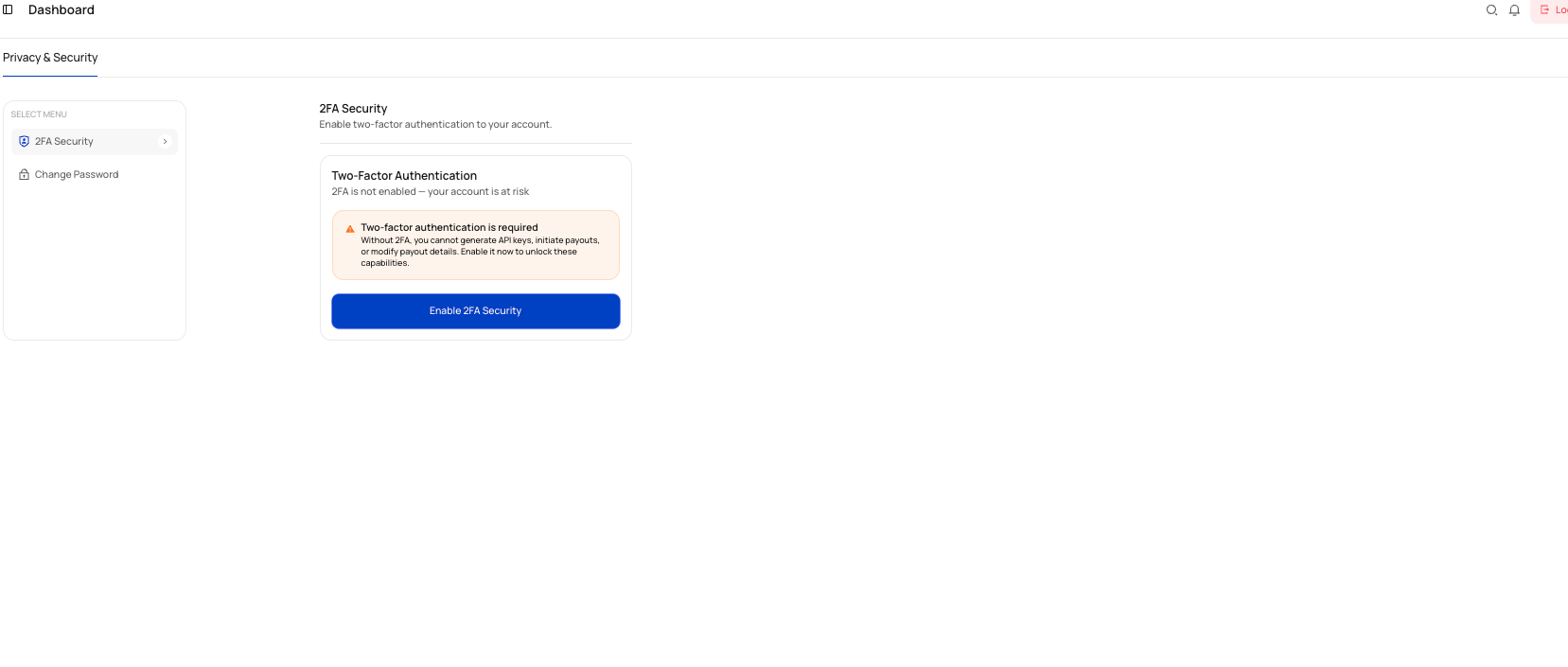
The **Settings** section is where you manage your account's privacy and security controls in the Ryno Business Portal.
At the moment, the available options shown in this module are:
* **2FA Security**
* **Change Password**
 ## What you can do in Settings
From the **Privacy & Security** area, you can:
* Enable two-factor authentication (2FA)
* Verify sign-in using an authenticator code
* Use a backup code during sign-in if needed
* Regenerate backup codes after 2FA is enabled
* Disable 2FA if required
* Change your account password
## Why this matters
Two-factor authentication is required for some sensitive actions. Without 2FA, you cannot generate API keys, initiate payouts, or modify payout details.
## Sections in this guide
## What you can do in Settings
From the **Privacy & Security** area, you can:
* Enable two-factor authentication (2FA)
* Verify sign-in using an authenticator code
* Use a backup code during sign-in if needed
* Regenerate backup codes after 2FA is enabled
* Disable 2FA if required
* Change your account password
## Why this matters
Two-factor authentication is required for some sensitive actions. Without 2FA, you cannot generate API keys, initiate payouts, or modify payout details.
## Sections in this guide