

Before 2FA is enabled
When 2FA is disabled, the page shows a warning that your account is at risk and that 2FA is required for some sensitive actions.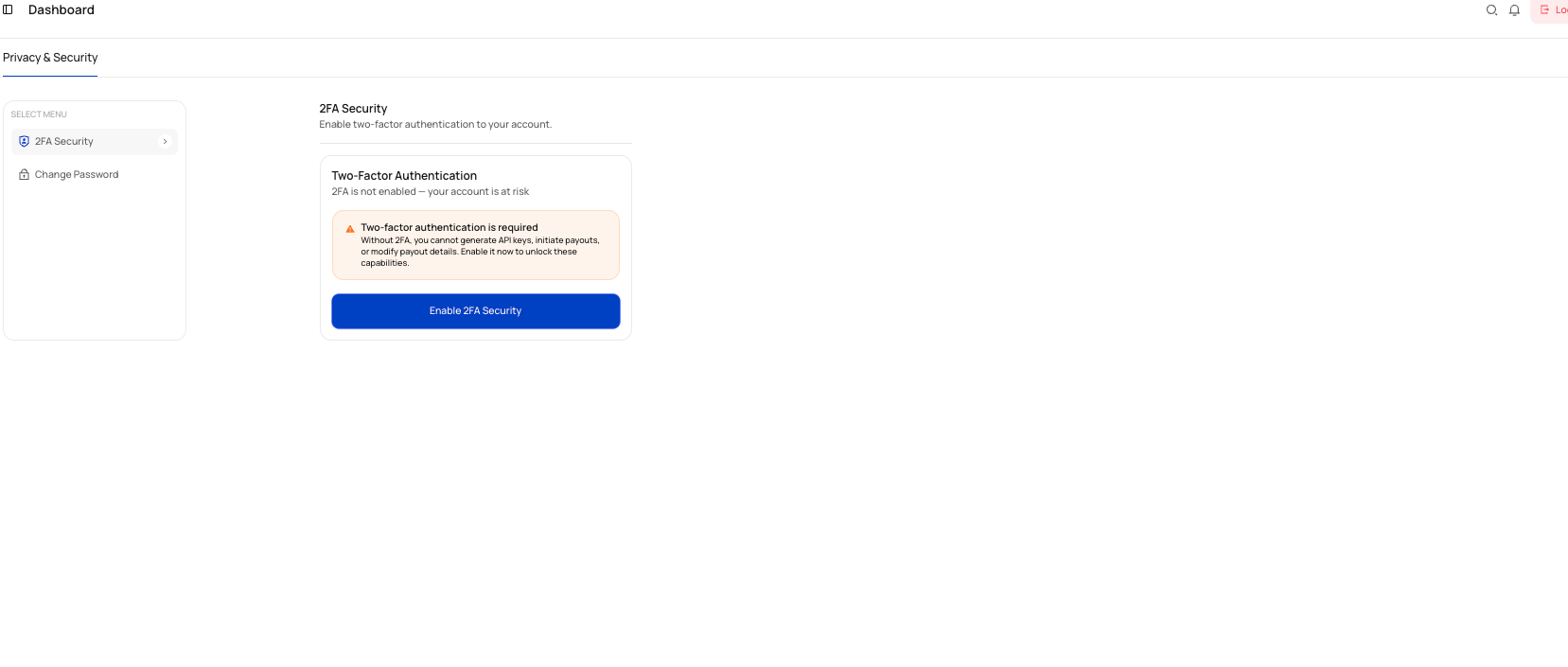
Enable 2FA
1
Open Settings
Go to Settings from the left navigation.
2
Open 2FA Security
Under Privacy & Security, select 2FA Security.
3
Select Enable 2FA Security
Use the button on the card to begin setup.
4
Complete setup with your authenticator app
Scan or connect the authenticator app as prompted and save any backup codes provided.
5
Confirm setup
Finish the verification flow so 2FA becomes active on your account.
What happens after 2FA is enabled
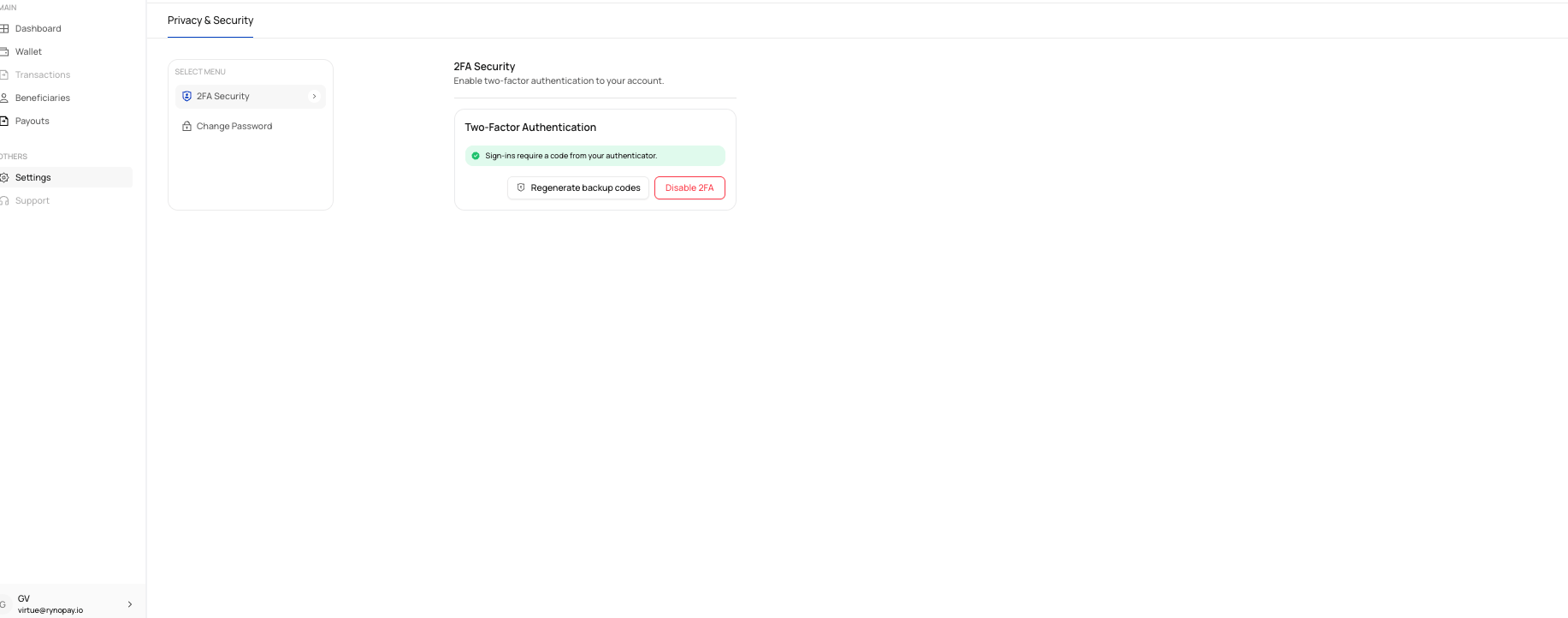
Once enabled:- Sign-ins require a code from your authenticator app
- You can regenerate backup codes
- You can disable 2FA later if needed
2FA during sign-in
After you enter your email address and password, Ryno prompts you to enter the 6-digit code from your authenticator app.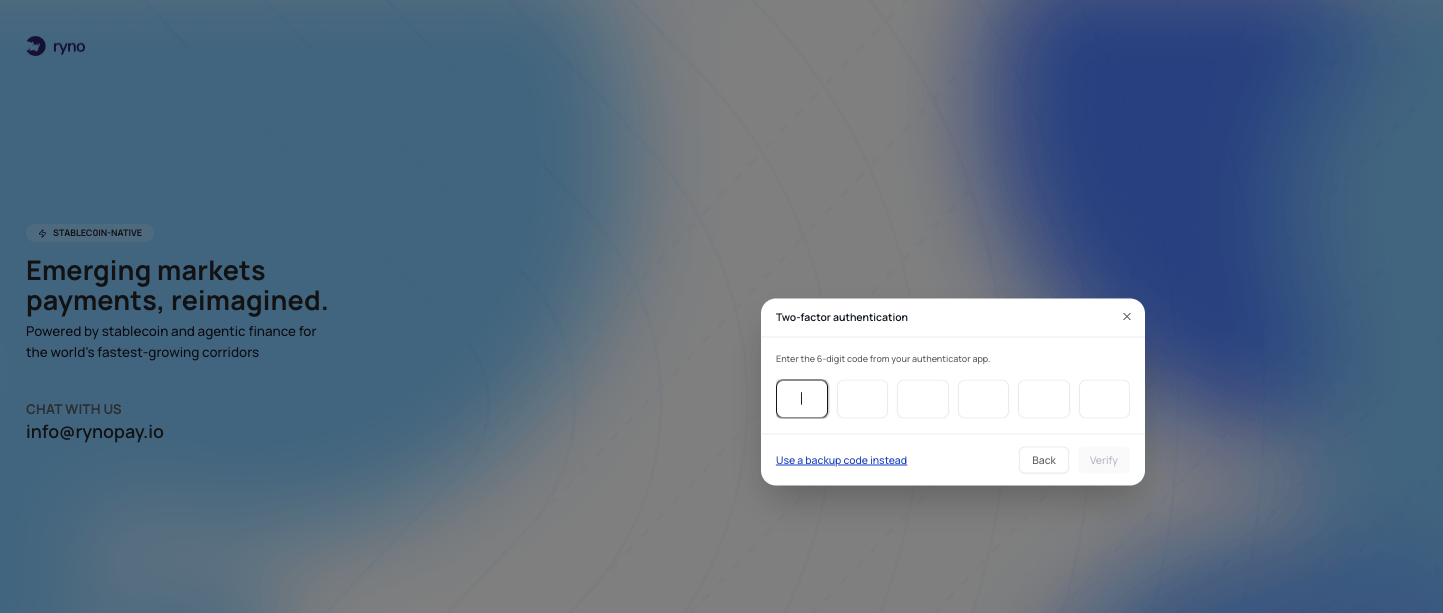
When 2FA is required
Based on the interface shown, 2FA is required before you can:- Generate API keys
- Initiate payouts
- Modify payout details
If you lose access to your authenticator app, try a backup code first. If that does not work, contact Ryno Support.